How to create a Device Reservation
For more information on Reservations: Reservations
Create a new Device
-
Open your Sleeve Hub interface and log in.
-
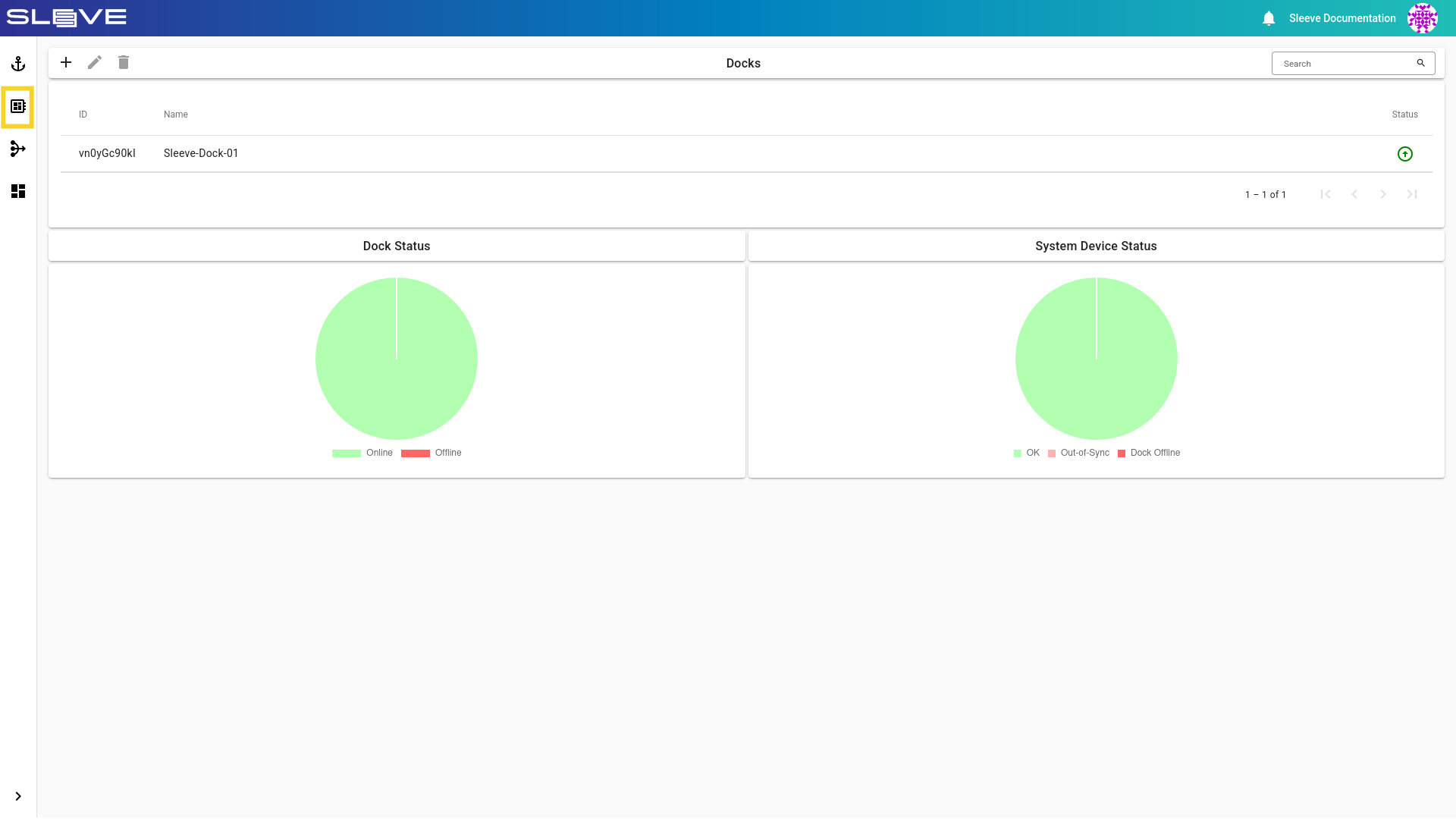
Navigate to the Devices Page by clicking the button.
Image
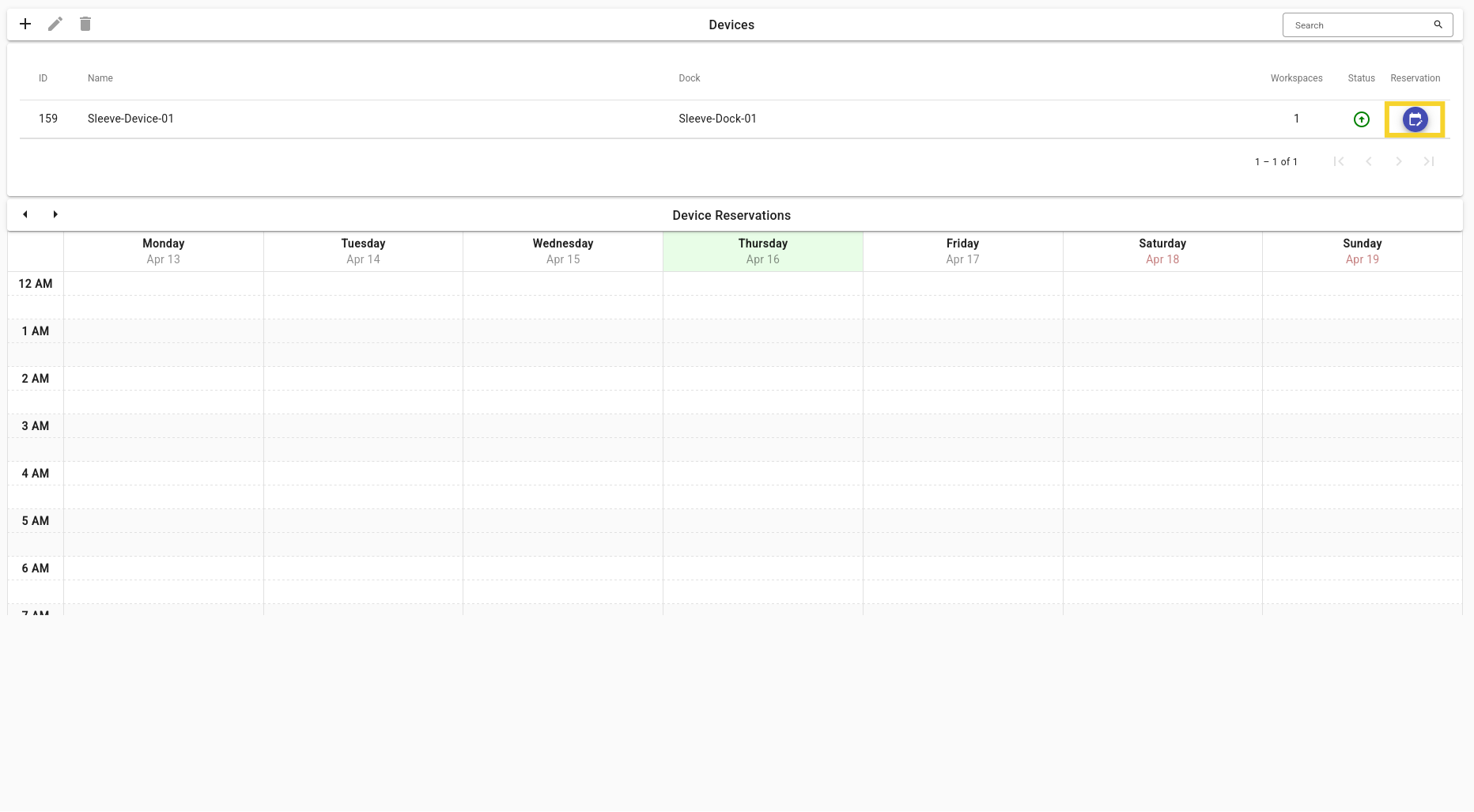
- In the Devices Page, navigate to the Device of your choosing and press the button. You will jump to the Reservations card of the Edit Device Page.
Image
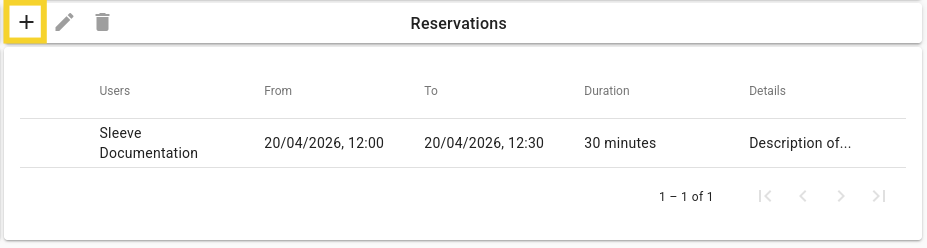
- Click the button to create a new reservation.
- Set the initialization fields according to your needs and click the save button.
Tip
- The start now checkbox can be selected to let the resrervation start immediately after saving it.
- The All day can be selected if you want to reserve a Device for multiple days in a row. If today is selected as a start date, then the time is automatically set to the save time.
- The Until next reservation checkbox can be selected to automatically select the end date to be shortly before the next reservation start.
Example reservation
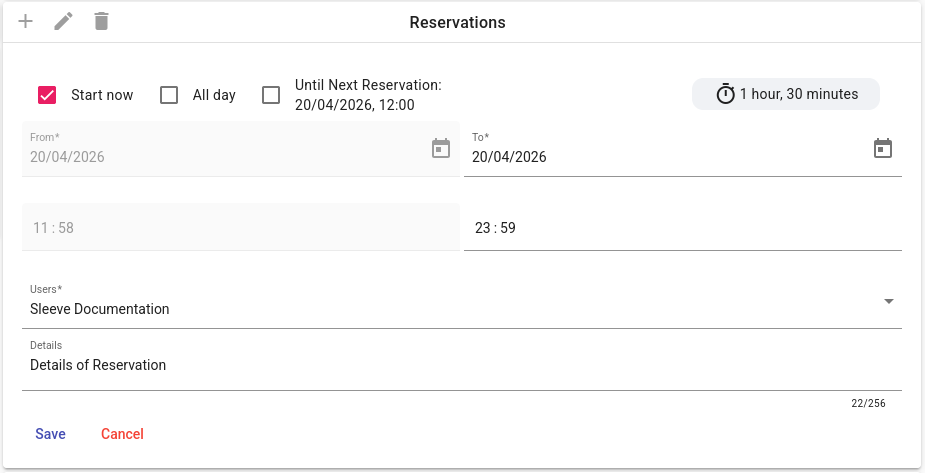
Description of Fields
Reservation Fields
| Field | Description |
|---|---|
| Start now | Toggle for setting the field From to current time and date. |
| All day | Toggle for setting the field To to end of the current day. |
| From | Starting time and date of the desired Reservation. |
| To | End time and date of the desired Reservation. |
| Users | List of users that will have access to this Reservation. |
| Details | Field for explanining the Reservation. |