How to mount a new System Device
For more information on System Device: System Devices.
Prerequisites
- A previously created Sleeve Device.
- A previously created Workspace.
- A previously created Action.
Add a new System Device to your Dock
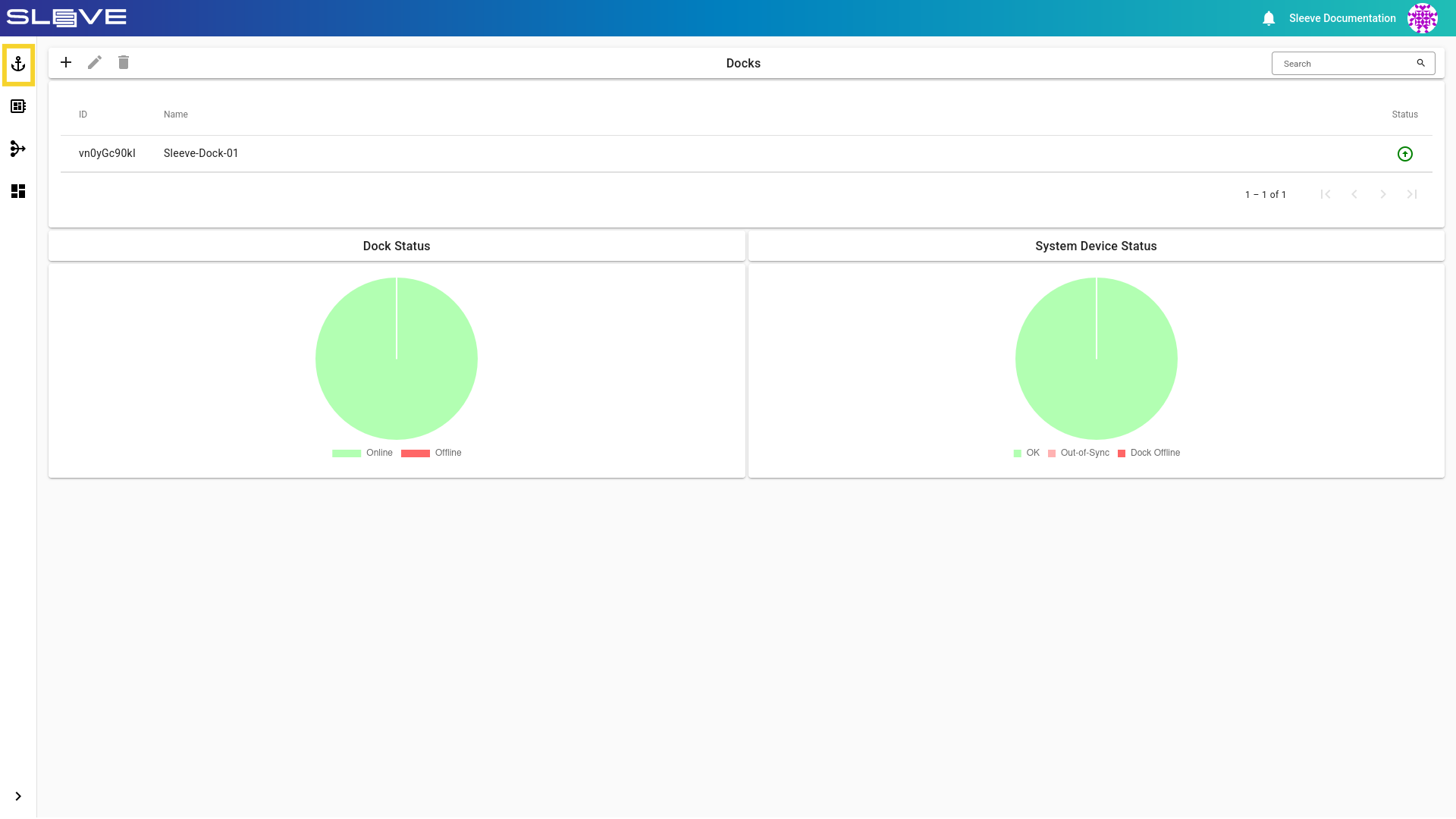
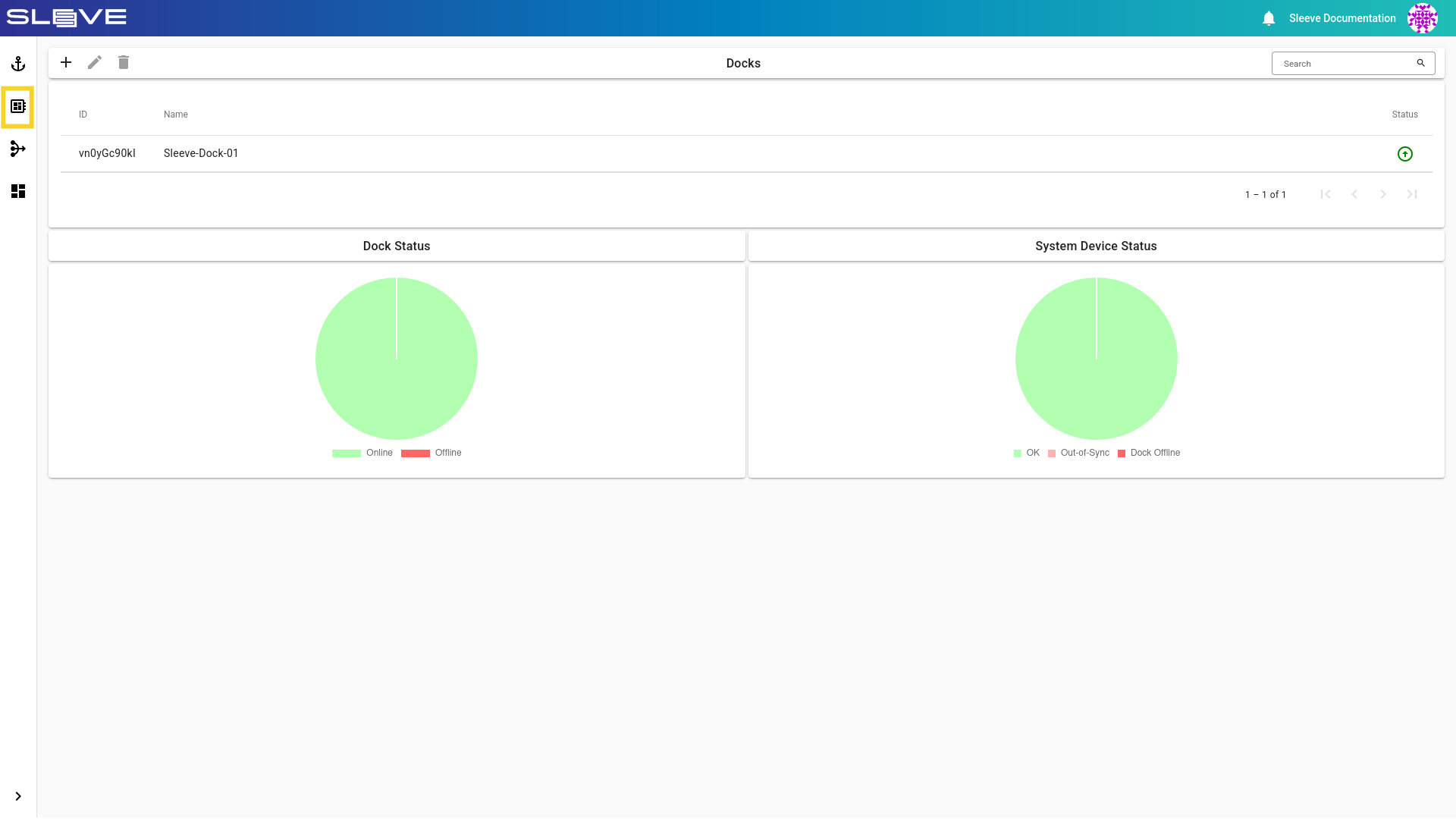
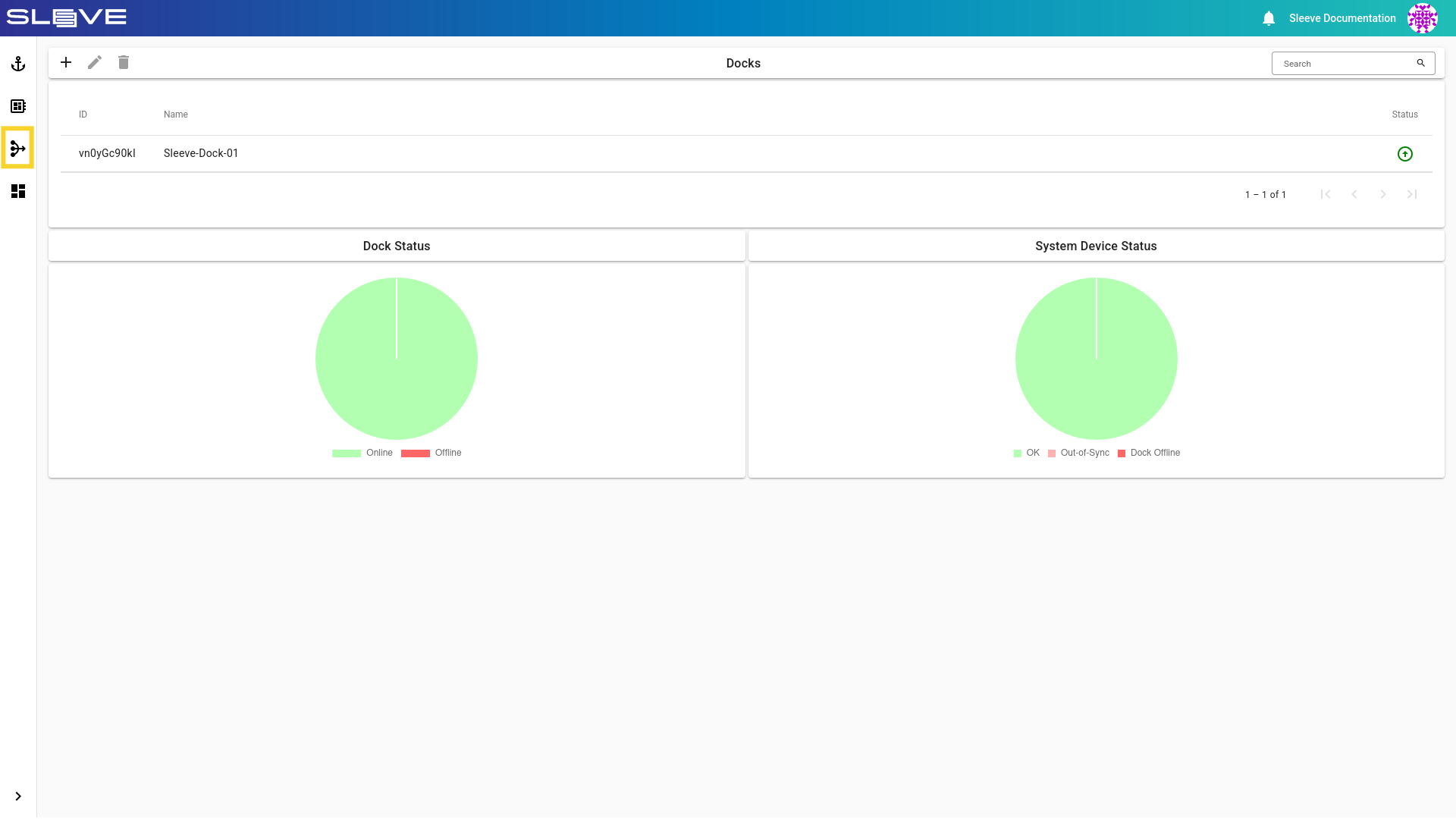
- Navigate to the Docks page by clicking the button.
Image
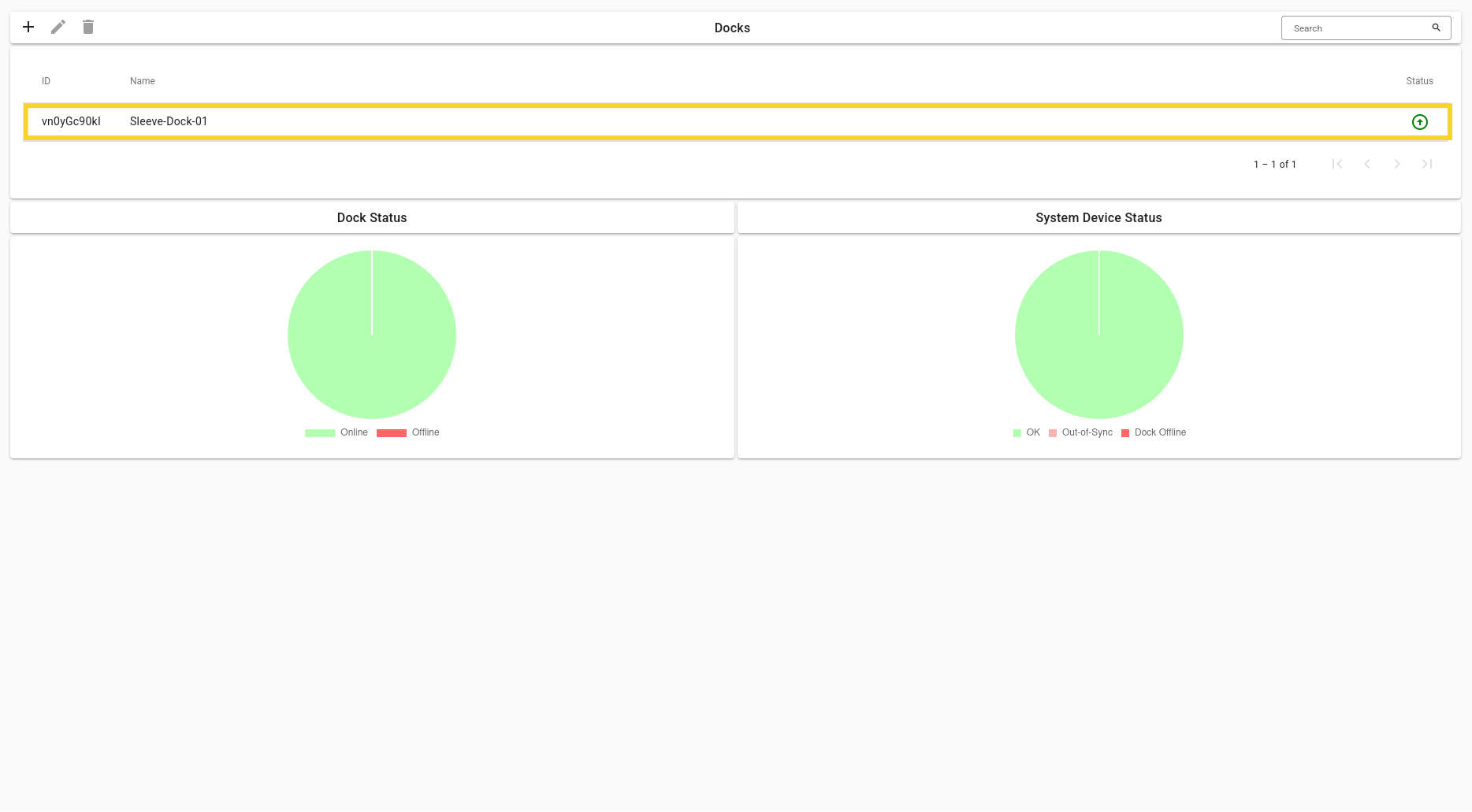
- Find your Dock in the list of all Docks by either using the search field on the top menu bar, or scrolling the list.
- Double click on the Dock you wish to add the System Device to.
Image
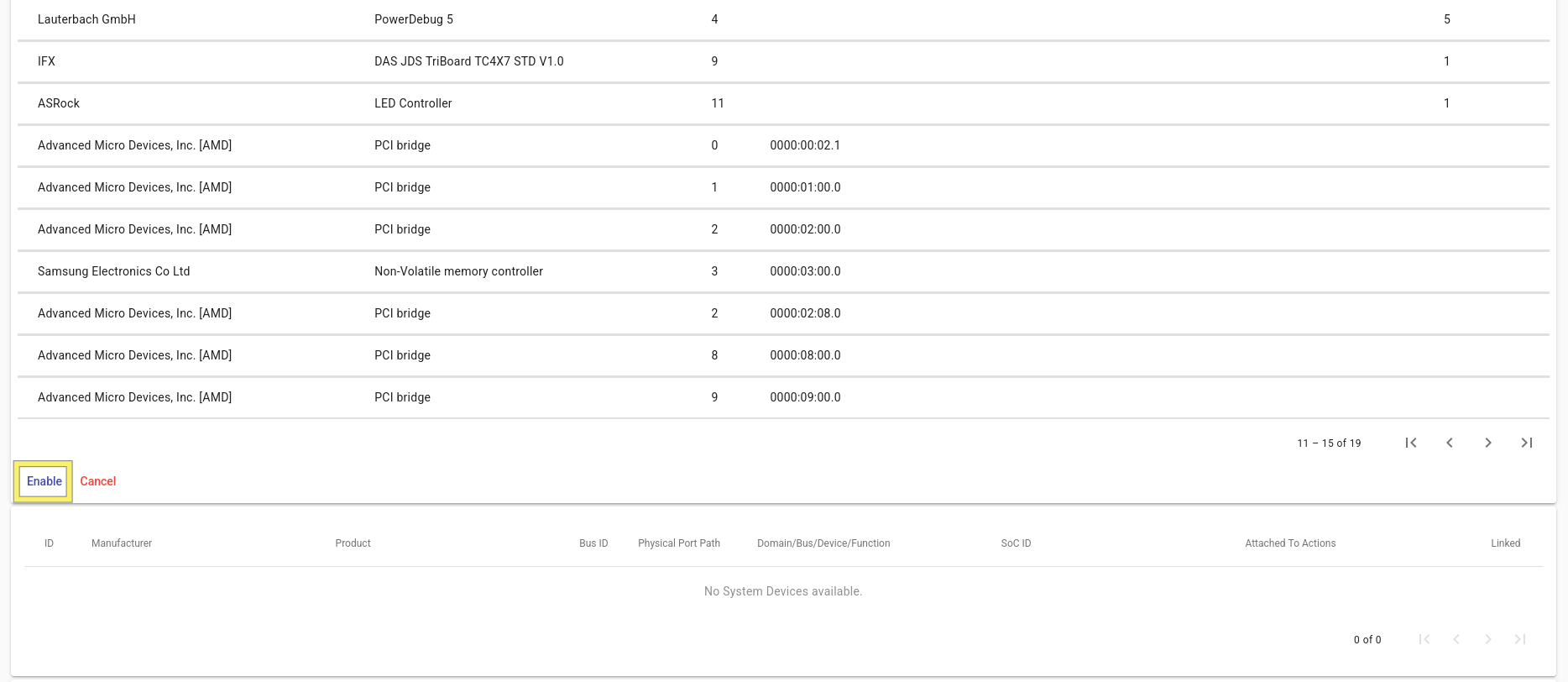
- Click on the button under the card labeled System Devices.

- Choose the System Device you wish to add.
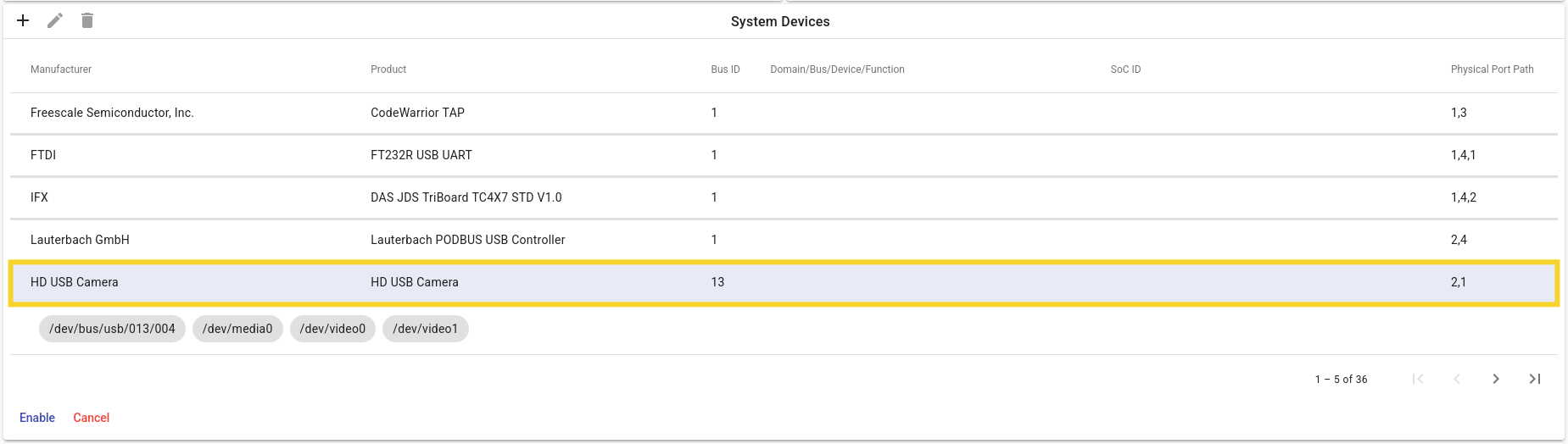
- Click on the enable button on the bottom left of the System Devices card.
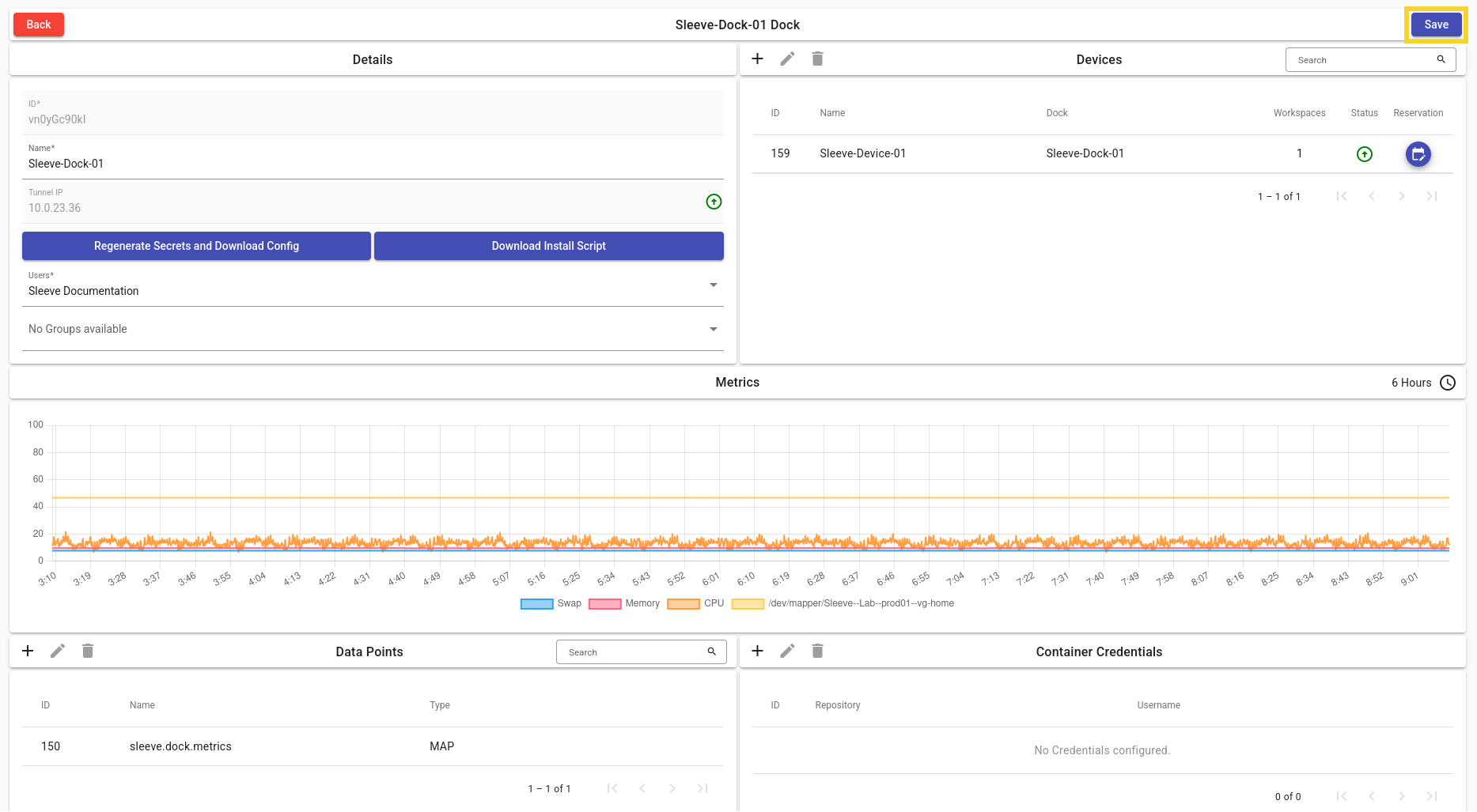
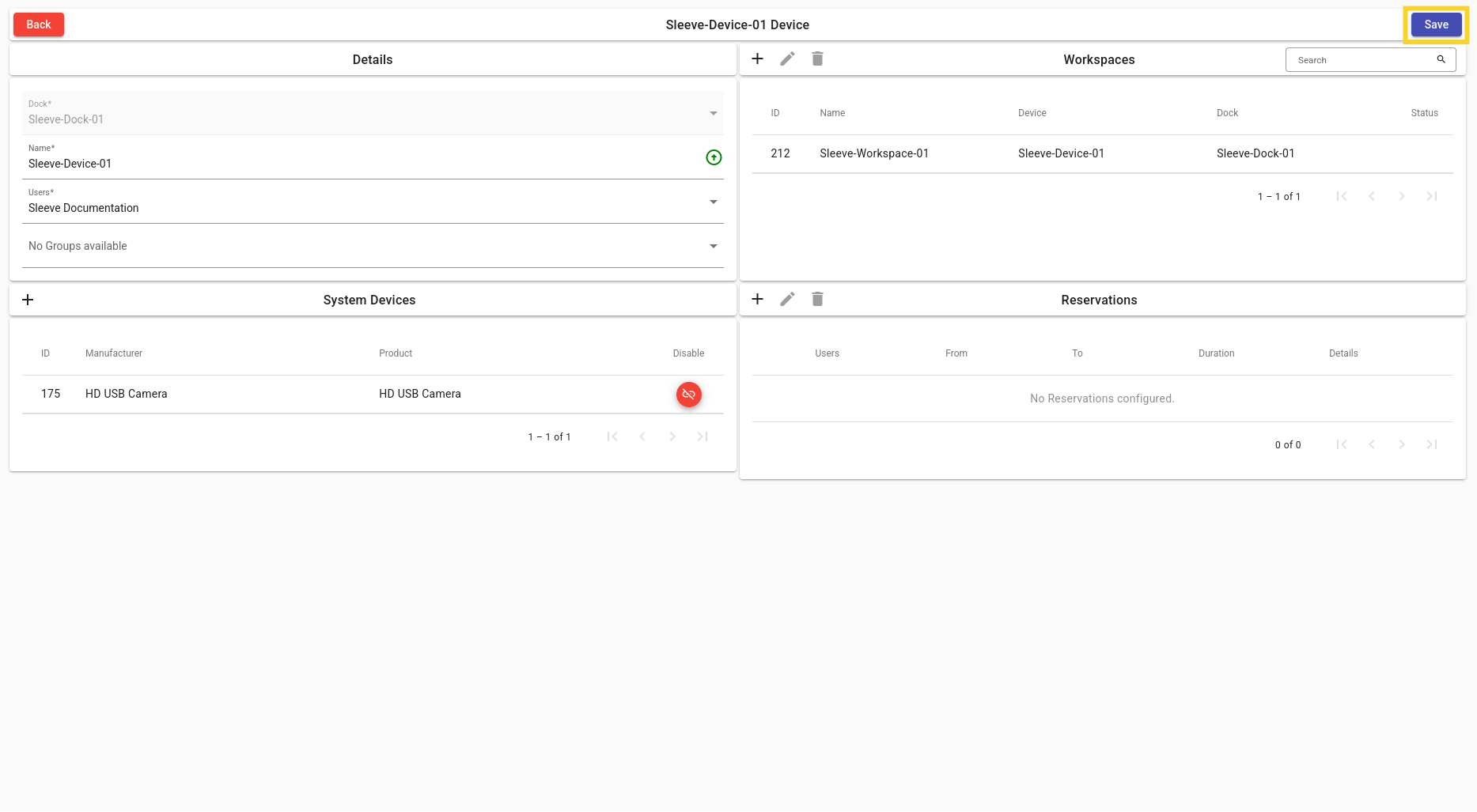
- Do not forget to save the Dock by using the save button!
Tip
Adding the System Device to your Sleeve Device
- Navigate to the Devices page by clicking the button.
Image
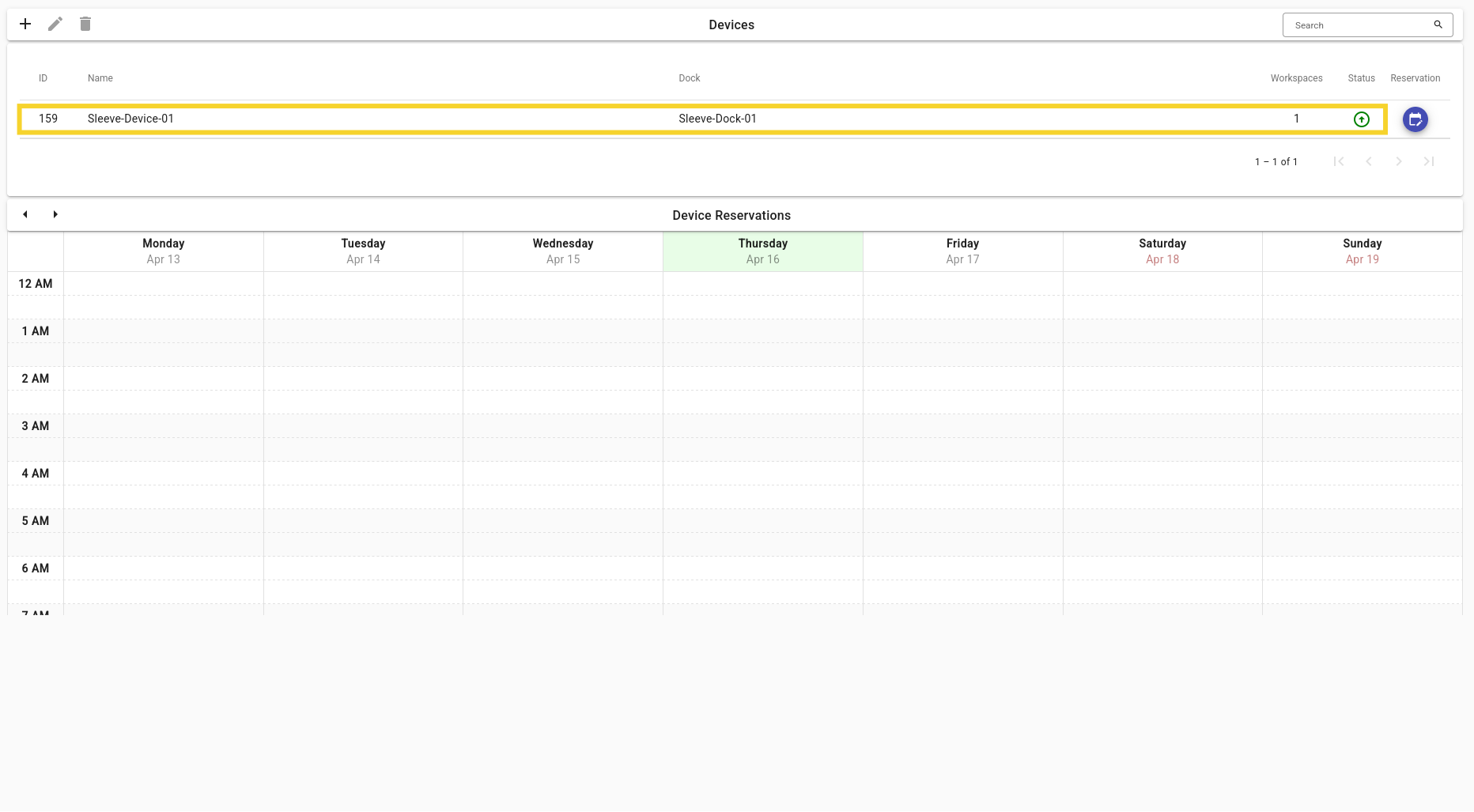
- Find and select your Device and either double click on it, or click the button to navigate to it’s Page.
- Double click on the Sleeve Device you wish to add your new System Device to.
- Click on the button under the card labeled System Devices.

-
Click on the System Device you with to add.
-
Click on the Link System Device buton to link it.
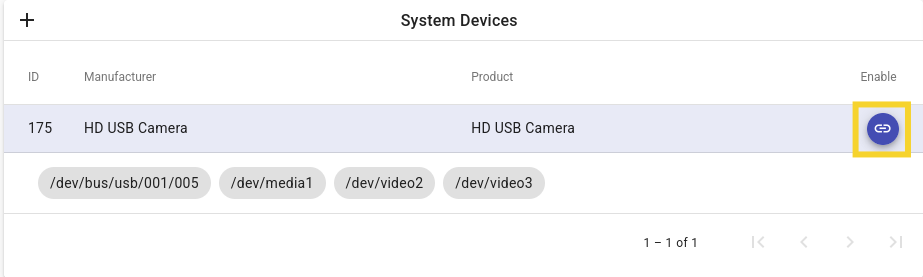
- Do not forget to save the Sleeve Device by using the save button!
Tip
Mounting the System Device to an Action
- Navigate to the Workspaces page by clicking the button.
Image
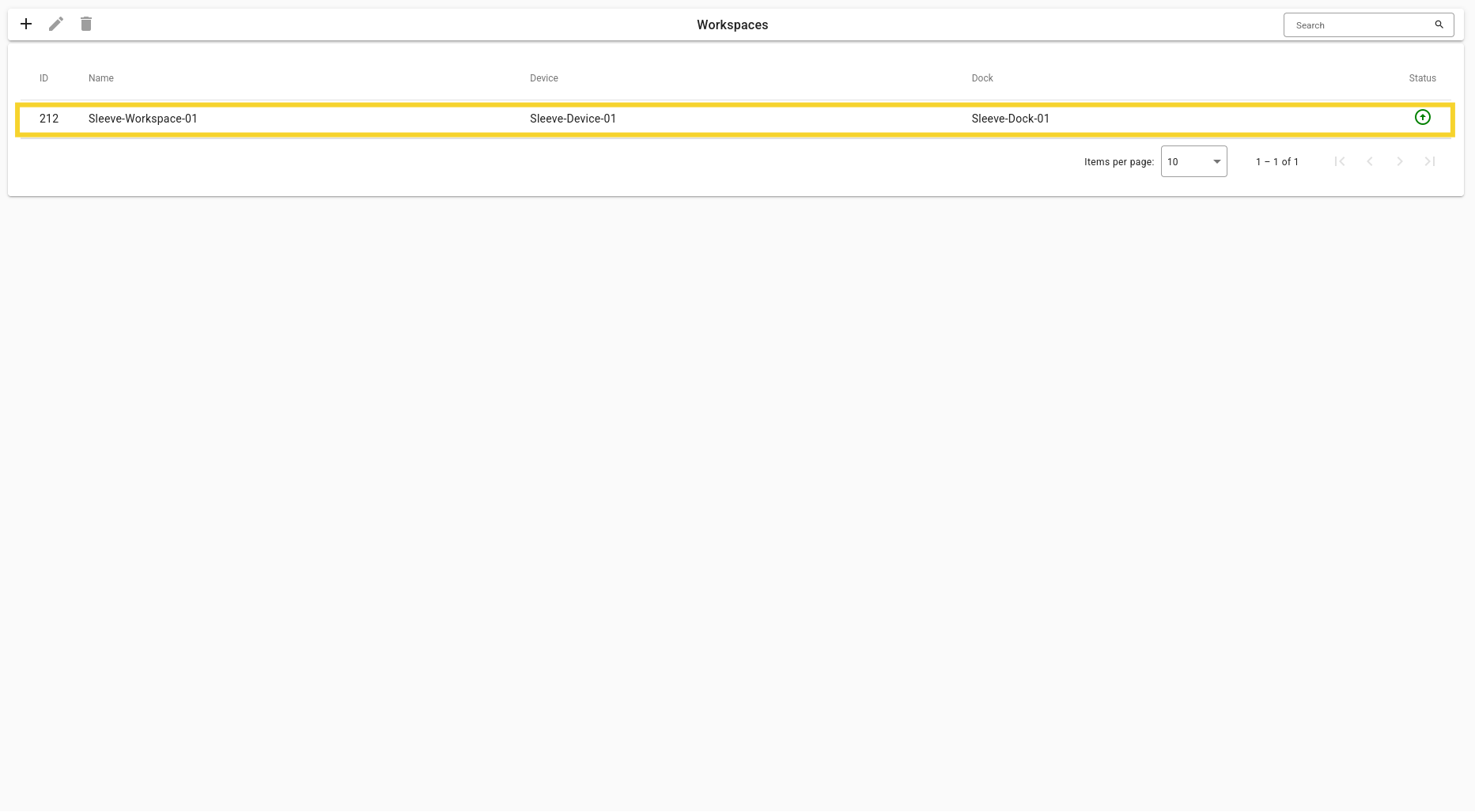
-
Find your Workspace in the list of all Workspaces by either using the search field on the top menu bar, or scrolling the list.
-
Double click on any Workspace that is under the Sleeve Device you added your System Device into.
- Double click on any Action inside the Actions card.

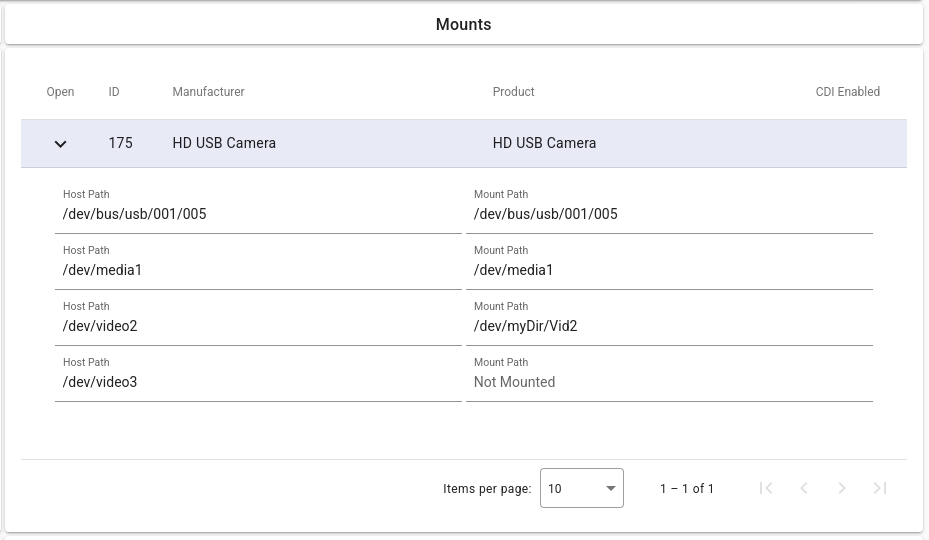
- Select the System Device you have added inside the Mounts Card.
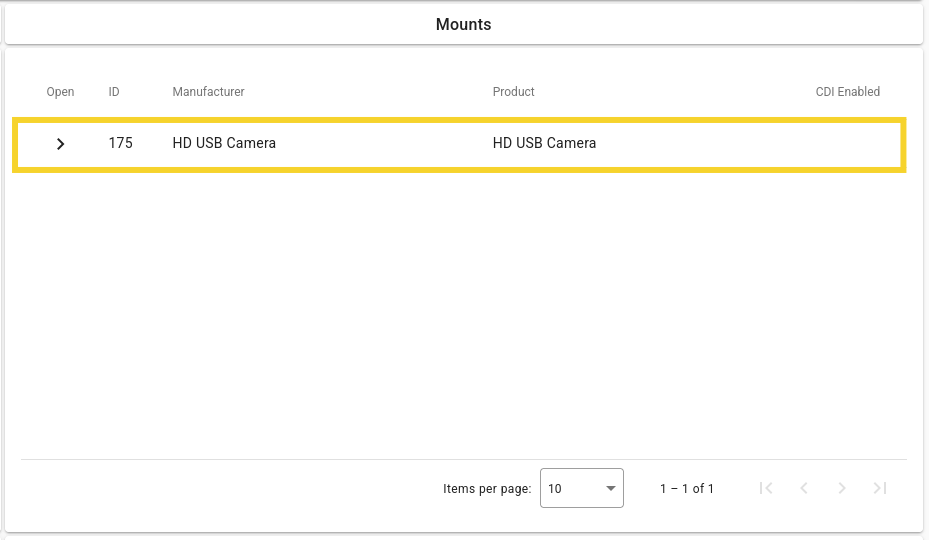
- Fill in your desired mount paths for the mounts you require.
Example
- You may leave the mount paths which you do not require as empty.
- You can just use the same mount paths as the provided paths: