How to create and run a new Action
For more information on Actions: Actions.
Prerequisites
A previously created Workspace.
Create a new Action
- Navigate to the Workspaces page by clicking the button.
Image
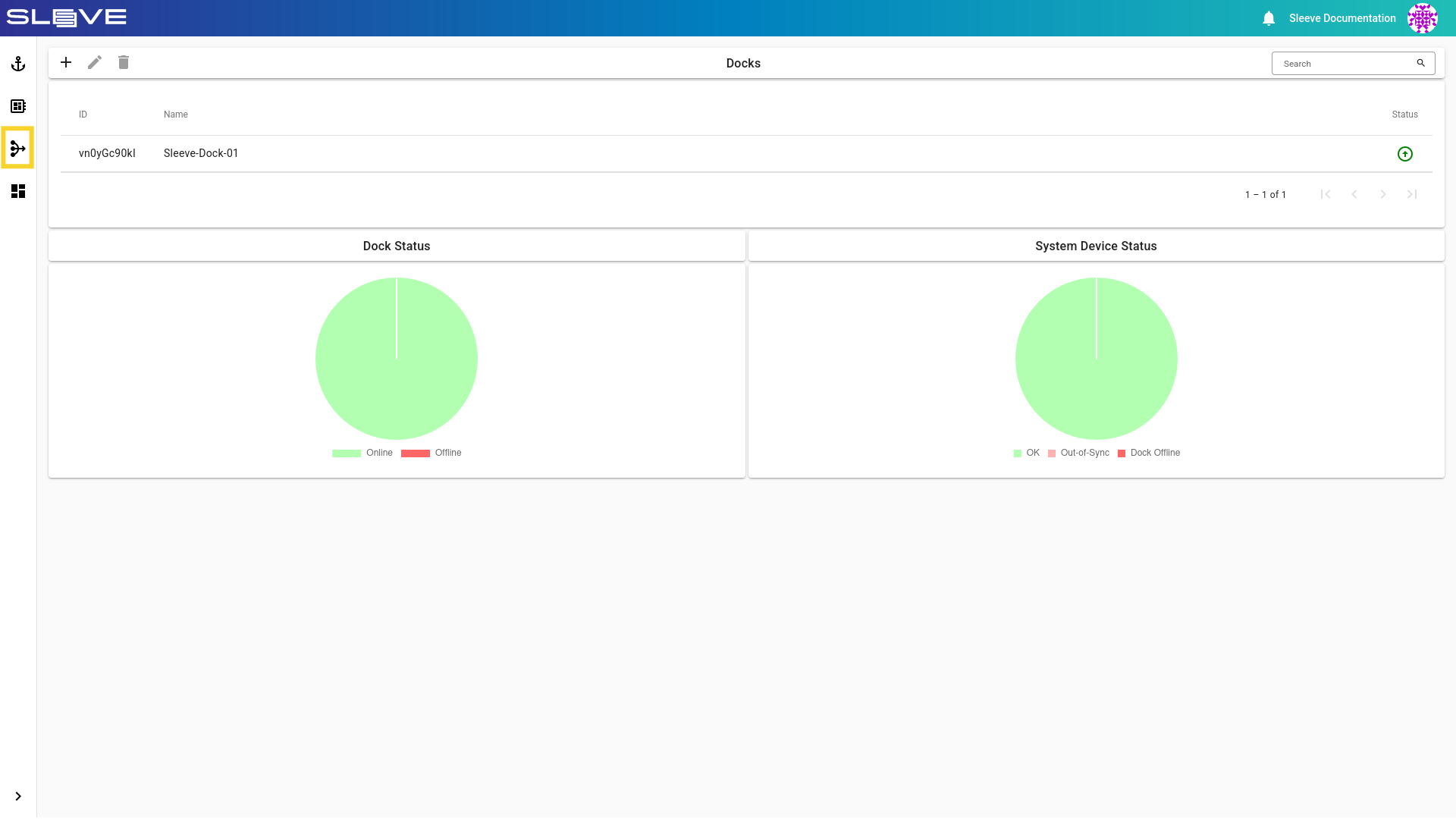
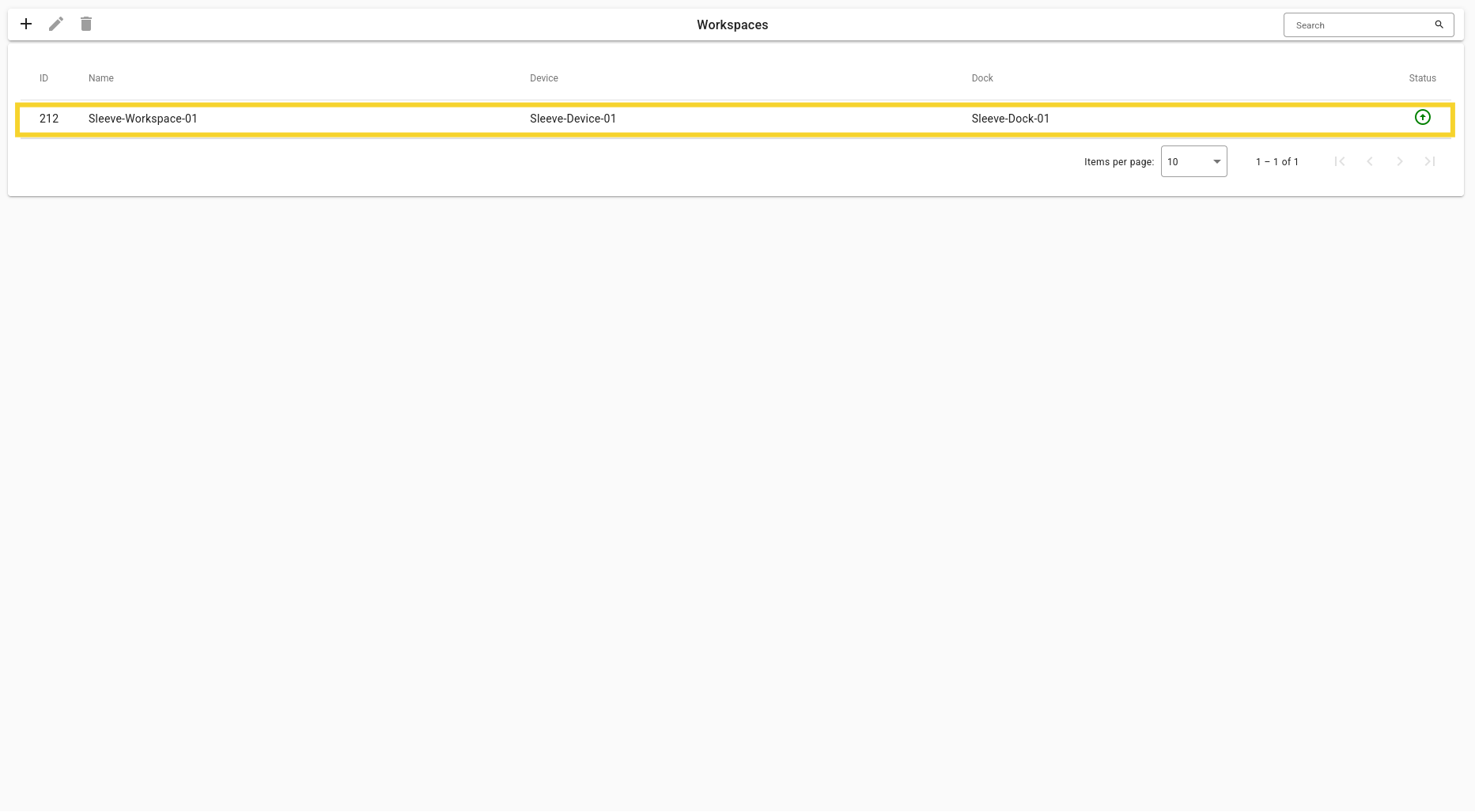
- Find your Workspace in the list of all Workspaces by either using the search field on the top menu bar, or scrolling the list.
- Double click on the Workspace you wish to create an Action in.
Image
- Click on the button under the card labeled Actions.

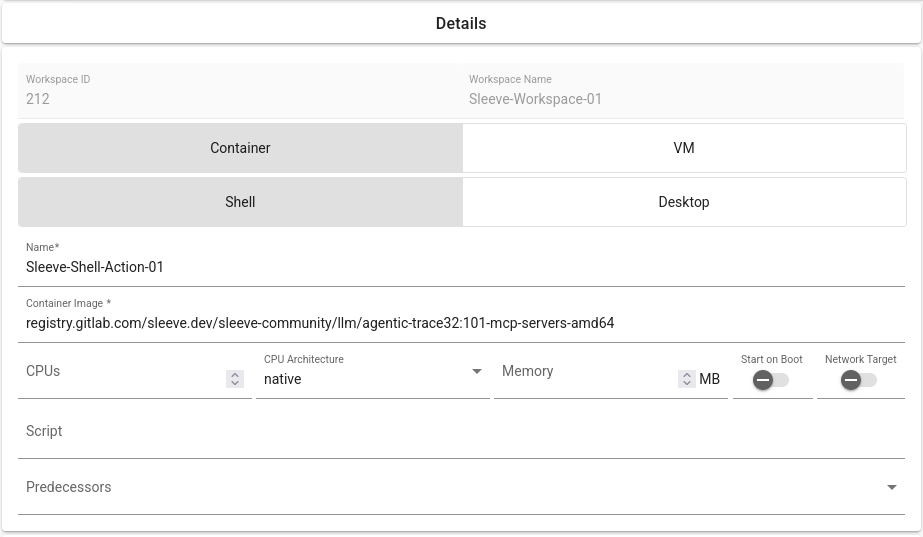
- Choose either a Container or a Virtual Machine depending on your needs:
-
Container — Runs your action inside a container image. Lightweight, fast to start, and ideal for consistent, portable environments.
-
Virtual Machine — Runs your action inside a full virtual machine with its own operating system. Provides stronger isolation and more control over the runtime environment.
Note
A Virtual Machine cannot be used to run a Shell; instead, use a Container.
- Choose either a Shell, or a Desktop environment:
-
Shell — Provides command-line access to the environment. Best for automation, scripting, and running tasks non-interactively.
-
Desktop — Provides a graphical desktop environment. Useful when your action requires a GUI, visual tools, or user interaction.
- Set the initialization fields according to your needs and click the create button.
Example
Run the Action
- Navigate back to the Workspace by clicking the back button.
Image
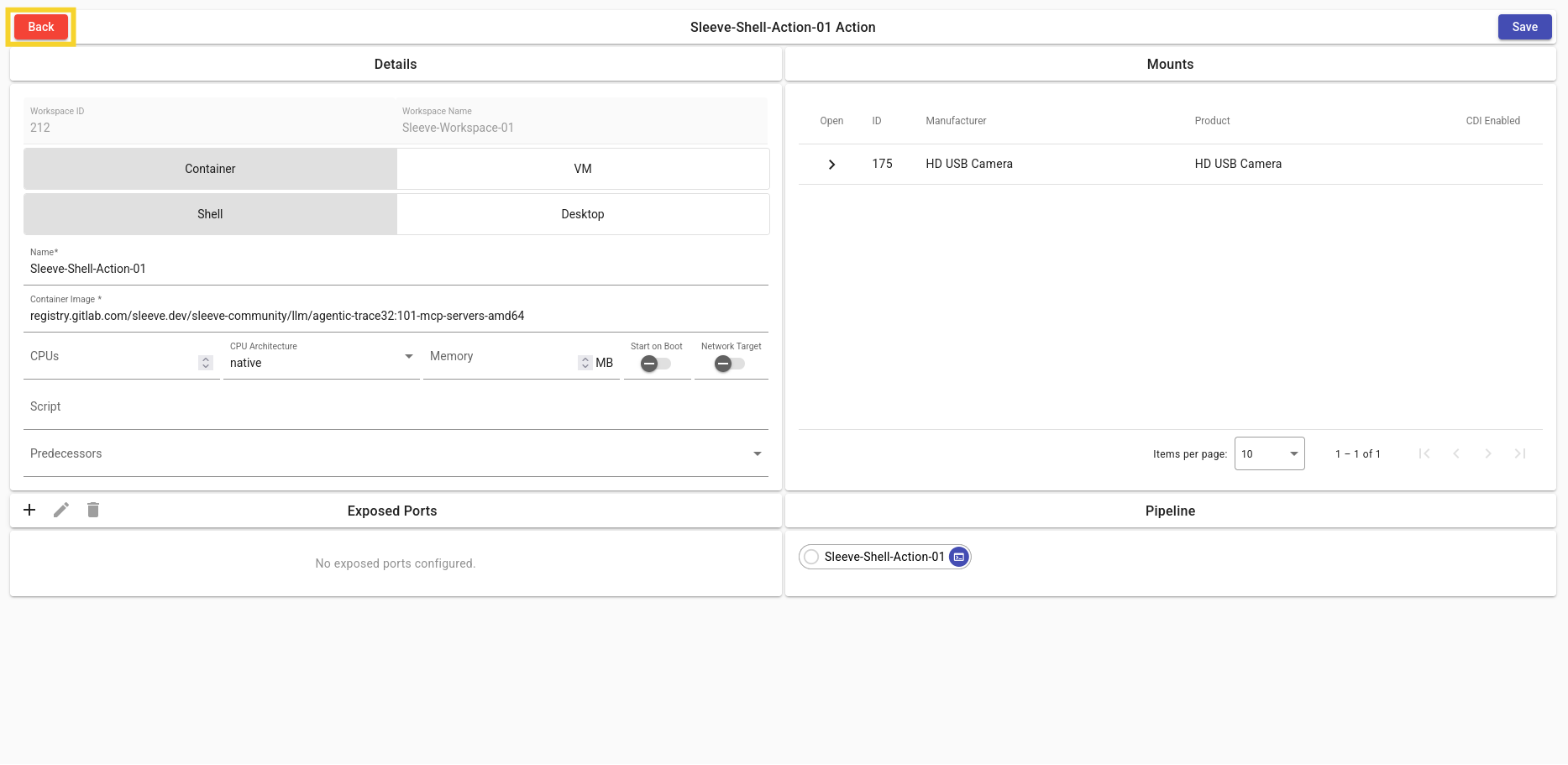
- Click on the Action Launch button to open the Action Page in a new window.

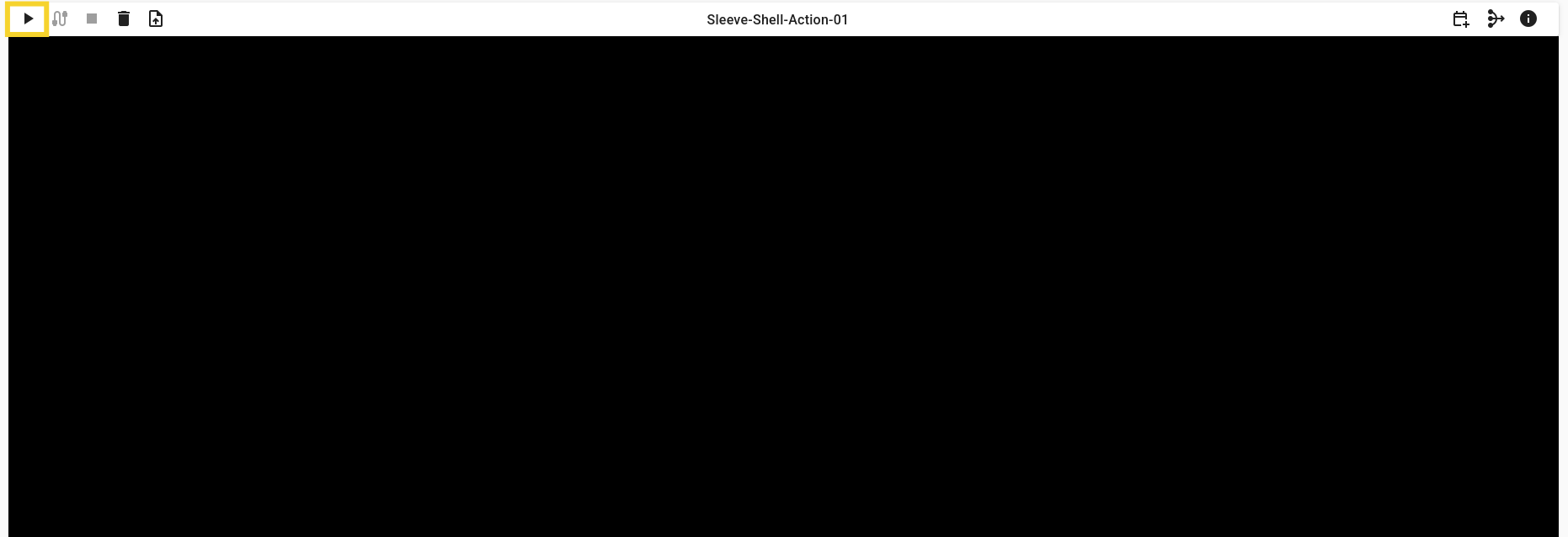
- Click on the … button to start the Action.
Description of Fields
| Field | Description |
|---|---|
| Name | Display name. |
| Container Image | Base image to initialize the shell. |
| CPUs | No. of CPU cores allocated. |
| CPU Architecture | Architecture selection for CPU. |
| Memory | Memory allocation in MB. |
| Start on Boot | Whether to start on Boot. |
| Script | Initial script to run on start. |
| Predecessors | A predecessor action. |
| Field | Description |
|---|---|
| Name | Display name. |
| Container Image | Base image to initialize the environment. |
| CPUs | No. of CPU cores allocated. |
| CPU Architecture | Architecture selection for CPU. |
| Memory | Memory allocation in MB. |
| Keyboard | Keyboard language selection. |
| Username | Container username. |
| Password | Container password. |
| Predecessors | A predecessor action. |
| Field | Description |
|---|---|
| Name | Display name. |
| Vagrant Box | Base image to initialize the environment. |
| CPUs | No. of CPU cores allocated. |
| CPU Architecture | Architecture selection for CPU. |
| Memory | Memory allocation in MB. |
| Keyboard | Keyboard language selection. |
| Username | Virtual Machine username. |
| Password | Virtual Machine password. |
| Predecessors | A predecessor action. |